

AppControl Review: The Task Manager Replacement I Didn't Know I Needed
I came across AppControl after seeing it mentioned on a tech YouTube channel and figured it was worth installing on a couple of my own machines before writing anything about it. I've got a mix of homelab VMs, my daily driver, and the occasional client workstation to test things on, so I put it through actual use rather than just clicking through the settings. It's a legitimate step up from Task Manager in a few specific ways, and I'll get into where it falls short too.
What It Actually Does
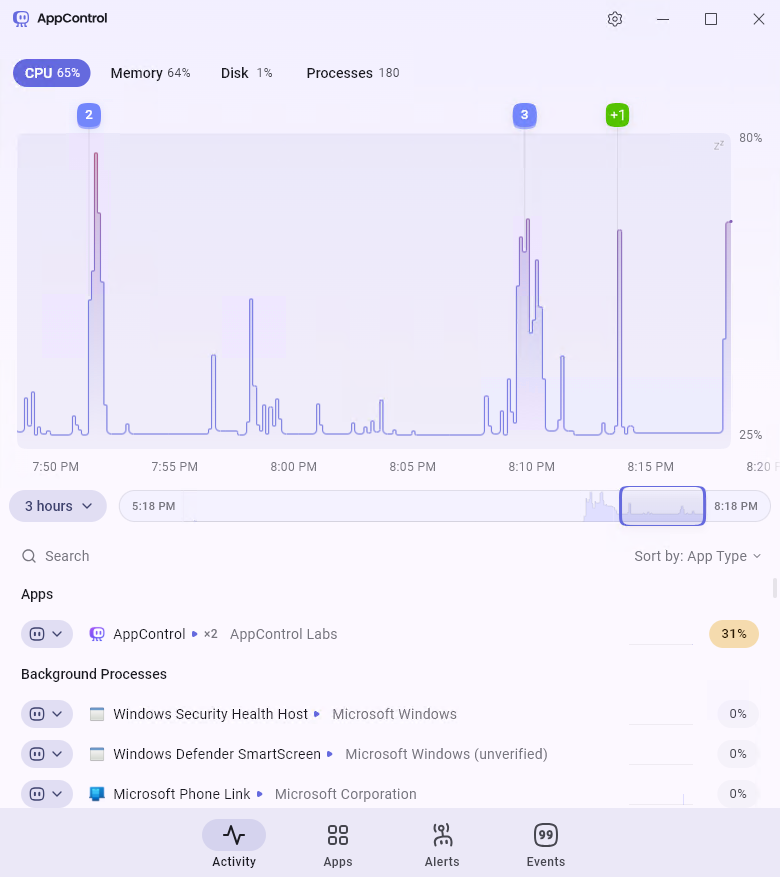
The core idea is simple: Task Manager only shows you what's happening right now. If your CPU spiked at 2am, or something quietly chewed through RAM for twenty minutes while you were at lunch, Task Manager has no record of it once the moment's passed. AppControl keeps a rolling 72-hour history, so you can go back and actually see what happened and when.
Install is small — around 14MB — no account, no email signup. It starts logging as soon as it's running.
The Features That Matter
Historical CPU/GPU/temperature tracking. This is the actual differentiator. Task Manager has nothing like it. If your fans have been spinning up and you don't know why, you can go back and line up the temperature curve with whatever was running at the time.
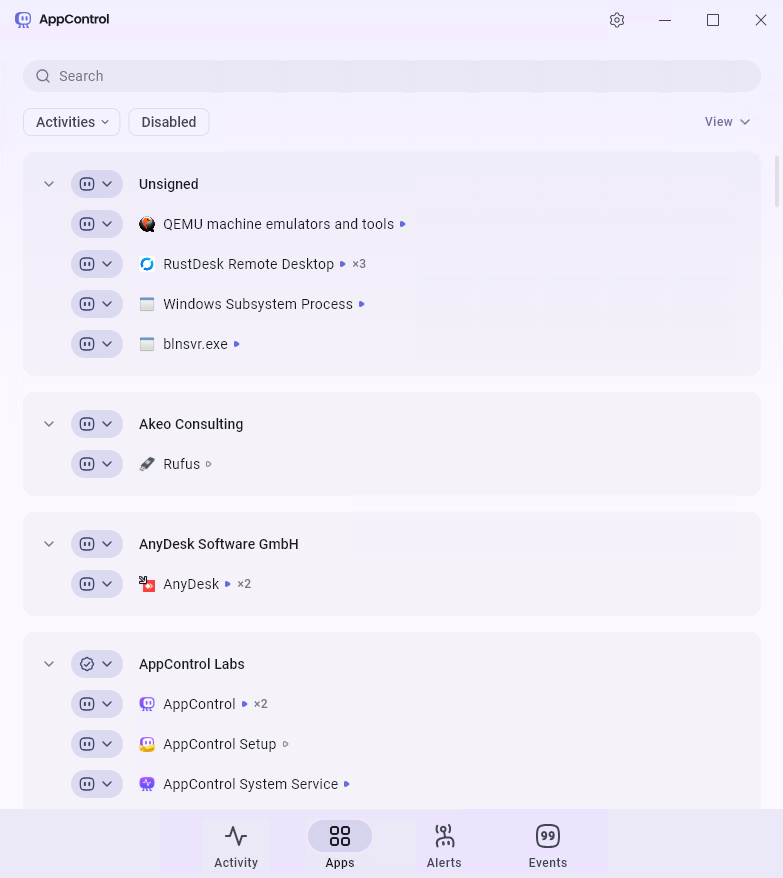
Kill vs. Disable. Kill is the same as End Task — force-close something frozen. Disable is the feature that's actually new: it stops that process from launching again, including after a reboot, until you turn it back on.
Publisher blocking. Instead of killing processes one at a time, you can block everything signed by a given publisher in one action. Useful if a vendor's software spawns three or four background helpers under different names — one click clears all of them instead of hunting each down.
Plain-English process descriptions. Click a process and you get a description of what it's for, instead of just a path and a publisher name. For something like IntelAudioService.exe, it'll tell you that's Intel Smart Sound Technology rather than making you go Google it.
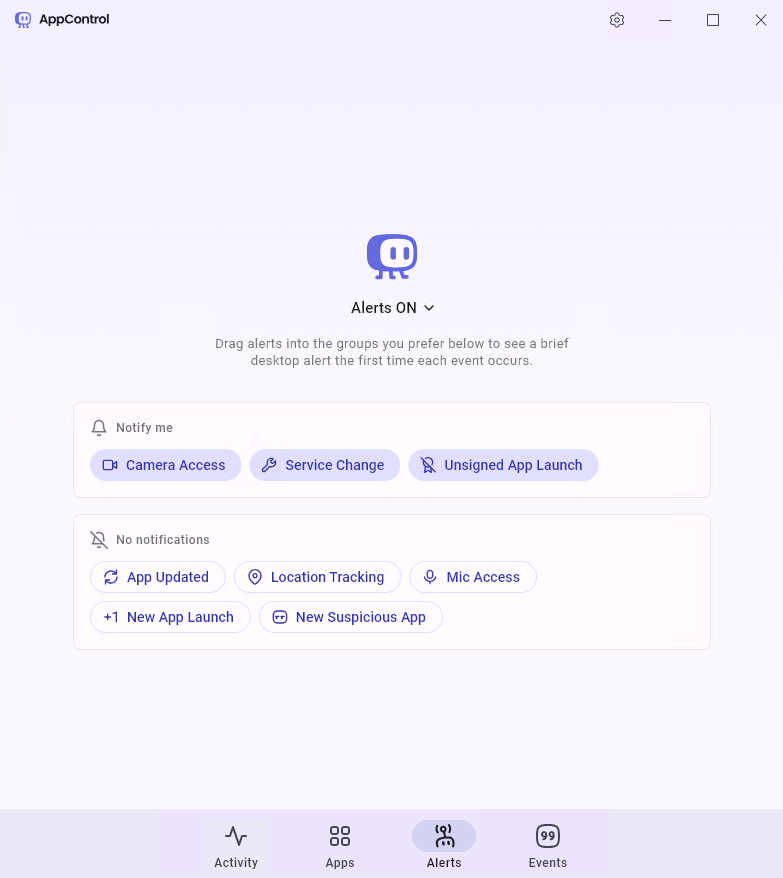
Alerts. Desktop notifications for webcam/mic/location access, first-time-seen executables, or unsigned binaries launching. Eight categories, each toggled independently, so you're not stuck with all-or-nothing notifications.
Where It's Useful for Average Users
- Figuring out why the fans are loud — pull up the temperature history, find the spike, see what caused it.
- Deciding whether it's safe to close something — the plain-English descriptions cut down on the usual "is this a virus?" guessing game.
- Catching things that installed themselves without asking — the first-seen alert flags a new executable the moment it runs, which is handy for bundled installers or unwanted browser helpers.
- Getting rid of a recurring annoyance for good — Disable means you're not ending the same process every morning after every reboot.
Where It's Useful for IT Work
- Diagnosing "it was slow this morning" after the fact. You almost never get to see the problem live. Being able to rewind and see what was actually consuming resources beats trying to get a client to reproduce it on the phone.
- Publisher-level cleanup on a bloated OEM machine. Faster than tracking down every individual bundled process during onboarding or a bulk cleanup pass.
- A quick filter for unsigned or elevated processes. Not a replacement for Process Explorer or Sysinternals, but a reasonable first look before you decide whether something needs deeper investigation.
- Confirming or ruling out webcam/mic access complaints. Saves digging through Event Viewer when a client swears "something" was using their camera.
The Part Worth Being Careful With
Because AppControl can disable processes and block entire publishers, it's possible to disable something you actually needed — worst case, whatever's keeping a remote session alive if you're managing a machine from elsewhere. Microsoft's core processes are largely pre-whitelisted so you can't easily disable them by accident, but publisher-level blocking is a broader hammer than killing a single process, and it deserves the same caution as End Task, maybe a bit more. If you do lock yourself out of something, the fix is an uninstall through Add/Remove Programs and a restart — not elegant, but it works.
What Other Reviews Said
A few things came up consistently elsewhere:
- Windows Central and Yahoo Tech both pointed out the same thing I noticed — small install, no signup, actually free rather than free-with-an-upsell.
- TechPP focused on the Kill vs. Disable distinction and publisher blocking as the real upgrade over stock Task Manager.
- MSPoweruser went deeper on the alerts and filtering options if you want to see the full range before installing.
- AlternativeTo lists it next to Process Explorer and Resource Monitor — a power-user monitoring tool, not a security suite, which matches how I'd categorize it.
I didn't come across any reports of it misbehaving or getting flagged by AV vendors. The criticism that did show up was mostly "this is more than a casual user needs," not anything about trust.
Where I Landed
I'm keeping it installed. The historical view and publisher blocking solve real problems Task Manager doesn't touch, and the plain-English descriptions are a genuine help for anyone who isn't comfortable parsing process names. The trade-off is that it's a broader tool than Task Manager — which means it's also easier to overreach with if you're not paying attention, particularly with publisher blocking. Use it with the same care you'd use with End Task, and it's a solid addition.
As always, if you have questions or want help setting this up, reach out through the Need Help? page.
#AppControl #Windows #TaskManager #ITTools #Homelab #TechTips #WindowsUtilities